
Key Takeaways
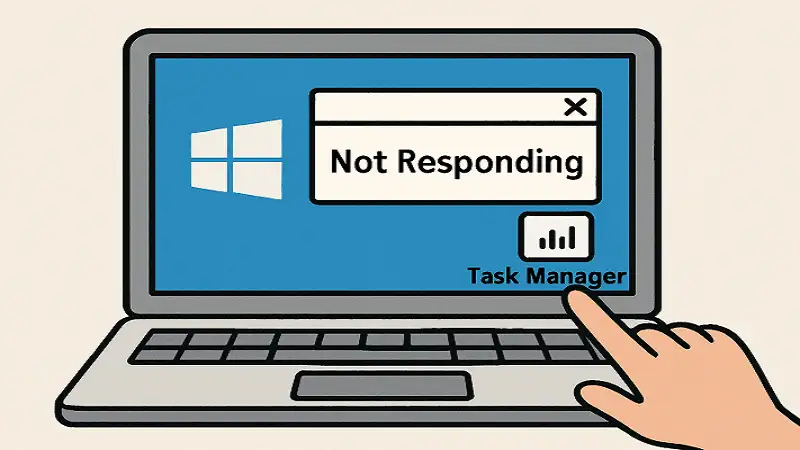
- Quickly close frozen programs using Task Manager.
- Repair corrupted system files with Windows tools.
- Update device drivers regularly for hardware compatibility.
- Optimize system performance by managing startup apps.
- Track resource usage to spot performance bottlenecks.
- Stay up to date with the latest Windows updates and patches.
Program freezes are a frequent annoyance for Windows users and can impact productivity, security, and overall system stability. Whether you’re dealing with a frozen application in the middle of an important task or recurring system slowdowns, knowing how to troubleshoot and prevent these freezes is essential. Fortunately, by following a few proven strategies, you can restore stability and reduce the likelihood of future interruptions. For users seeking immediate guidance on regaining control, see this guide on how to force quit an app on Windows to efficiently close unresponsive software.
Addressing program freezes often involves checking for software conflicts, running system checks, and ensuring drivers and updates are up to date. With Windows’ built-in troubleshooting tools and careful resource management, even less experienced users can resolve many common freezes on their own. Understanding these core concepts will help you maintain a more responsive computer that reliably meets your needs.
Close Unresponsive Programs Using Task Manager
If a program stops responding, use the Task Manager to force it to close without rebooting your computer. This is a common tip recommended by Managed IT Services professionals to minimize downtime:
- Press Ctrl+Shift+Esc to open Task Manager.
- Select the “Processes” tab and find the unresponsive application.
- Click the application and select “End Task” to close it immediately.
This will free up any system resources used by the frozen program, allowing you to resume normal activities quickly.
Perform System Integrity Checks
System freezes can sometimes be caused by corrupted or missing system files. Windows includes built-in utilities to scan, detect, and repair these issues:
- The SFC tool will automatically scan and repair problems with core system files.
- Deployment Image Servicing and Management (DISM): For deeper issues, run the commands DISM /Online /Cleanup-Image /CheckHealth, /ScanHealth, and /RestoreHealth to repair the Windows image.
These steps can resolve many recurring system and application freezes by repairing damage to the operating system files.
Update Device Drivers
Hardware drivers enable your system to communicate with components like graphics cards, sound cards, and network adapters. Outdated or incompatible drivers can cause freezes, crashes, and other erratic behavior. To update your drivers:
- Press Win + X and open “Device Manager.”
- Expand the device category and right-click any hardware with an outdated driver.
- Select “Update driver” and let Windows search for new software, or download drivers directly from the manufacturer’s website.
Regularly updating your drivers helps prevent compatibility issues and keeps your system running smoothly. If a driver update creates new issues, consider using Windows’ built-in driver rollback feature.
Manage Startup Programs
Many applications configure themselves to launch at startup, leading to longer boot times and increased memory usage that can contribute to system freezes. To streamline your startup process:
- Open Task Manager (Ctrl + Shift + Esc) and switch to the “Startup” tab.
- Review each listed program and disable non-essential apps by right-clicking and selecting “Disable.”
Disabling unnecessary startup programs can make your computer start faster and enhance its overall stability. This is especially important for older devices or computers with limited RAM.
Monitor System Resources
High CPU, memory, or disk usage by background applications is a leading cause of performance issues and program freezes. Monitoring your system’s resource consumption can help pinpoint the problematic process:
- Launch Task Manager and click on the “Performance” tab.
- Review real-time graphs for CPU, memory, disk, and network usage.
- Identify and address applications or services that are drawing excessive resources. Consider updating, uninstalling, or reconfiguring them as needed.
Windows Resource Monitor, available on the “Performance” tab of Task Manager, provides even more granular insights.
Keep Windows Updated
Applying regular Windows updates is vital to keeping your system secure and free of bugs. Updates also deliver fixes for known software vulnerabilities and compatibility issues. To check for and install updates:
- Open Settings using Win + I.
Restart your computer after updating to ensure all changes are fully applied. Make sure automatic updates are enabled for ongoing protection against emerging threats.
Perform a Clean Boot
If program freezes persist after troubleshooting the steps above, a clean boot can help isolate software conflicts by starting Windows with only the essential drivers and services:
- Open the Run dialog (Win + R), type msconfig, and press Enter.
- On the “Services” tab, check “Hide all Microsoft services” and select “Disable all.”
- Go to the “Startup” tab in Task Manager and disable all startup items.
- Restart your PC and see if the issue persists.
If the problem stops after a clean boot, re-enable items one at a time to identify the problematic program or service.
Check for Malware
Malicious software can hijack system resources, leading to frequent freezes or crashes. To scan for malware using Windows Security:
- Open Settings (Win + I).
- Select “Update & Security,” then “Windows Security.”
If any threats are found, follow the on-screen guidance to remove them.
Final Thoughts
Program freezes in Windows computers can result from unresponsive applications, outdated drivers, corrupted system files, or hardware resource overloads. By systematically applying the troubleshooting steps above, you can resolve most issues and enjoy a more stable, responsive computing experience. Staying proactive with updates, regular scans, and smart system management will keep your Windows PC running smoothly. See more